![Biomed Simulation Logo - white 1.png]](https://44247411.hs-sites-na2.com/hs-fs/hubfs/Biomed%20Simulation%20Logo%20-%20white%201.png?height=40&name=Biomed%20Simulation%20Logo%20-%20white%201.png)
- Log in as an administrator or as a user with administrator privileges.
- For the best installation experience, it is strongly recommended that the computer’s antivirus program is disabled.
- Go to Settings > Apps > Remove CALIFIA® Simulator to uninstall existing software if
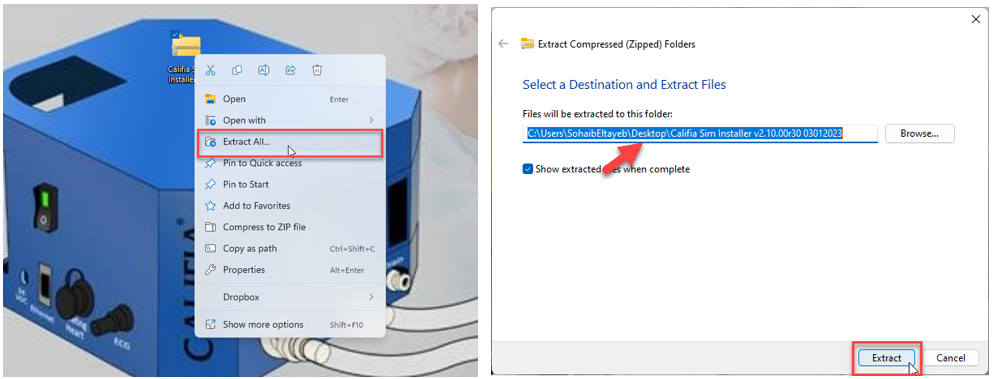
applicable. - Locate the installer zip file and extract it to your Desktop.
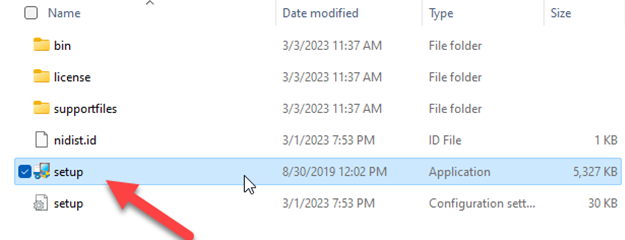
- Open the extracted file, and double left click on the setup icon, and allow.
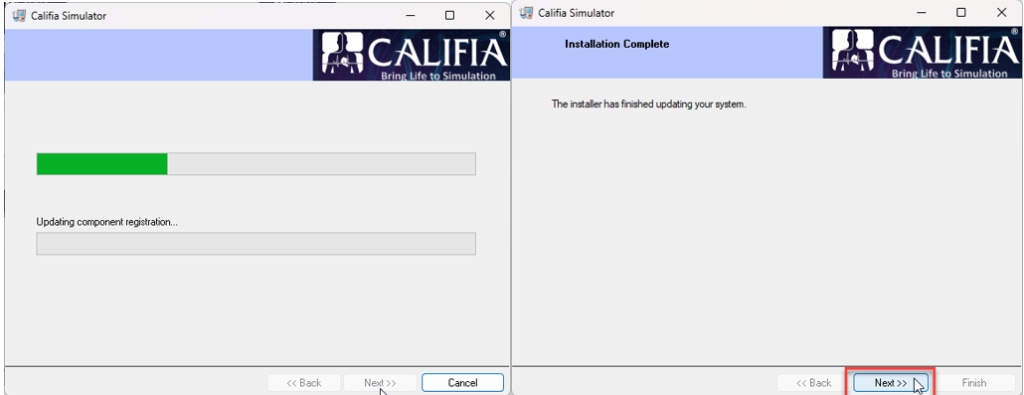
- Follow the instructions to installer instructions.

- Wait for the installer to finish updating your system, then hit Next.
-
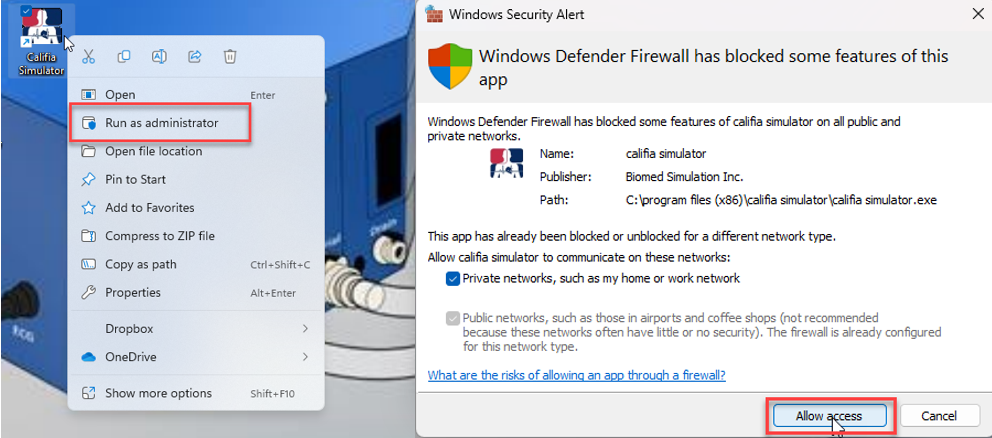
Once that is done, the Califia Simulator icon should appear on your Desktop. In order to launch the software, right-click on the Califia Simulator icon and run as administrator and make sure to Allow access the first time it launches.
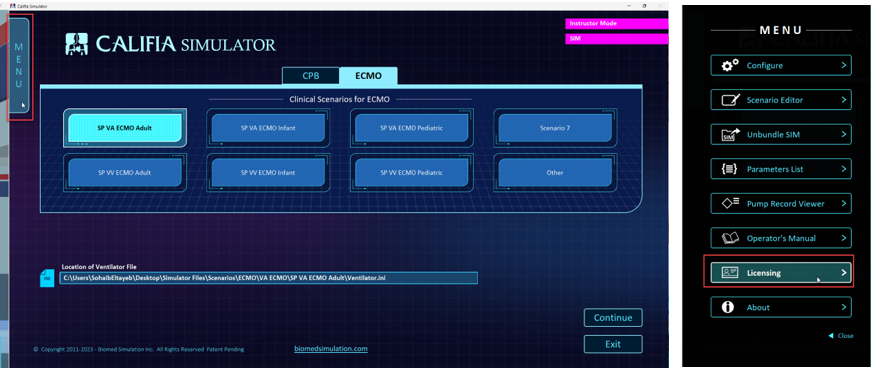
- Click the MENU button on the Opening Screen then Licensing to activate your software.
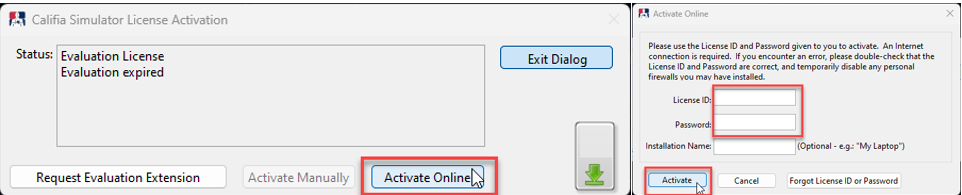
- Click on the Activate Online button, enter the License ID and Password provided by Biomed Simulation then click on Activate. Note: the computer must have internet access.
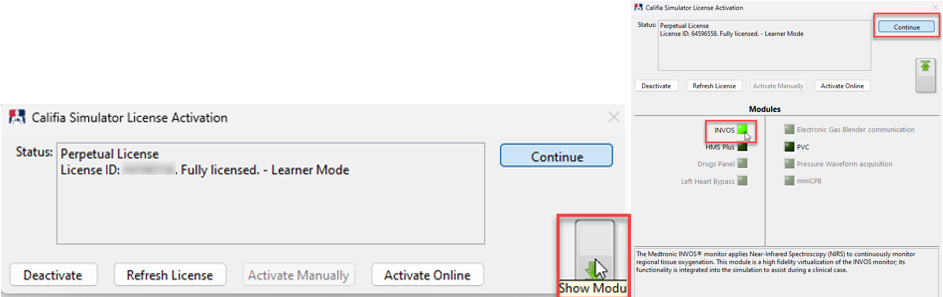
- Click the Show Modules to expand the view, enable any of the available modules then click Continue.
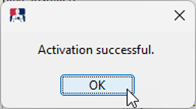
- Once it is successfully activated, exit the software completely, launch again, and have fun simulating.
If you still need further assistance, please contact a Biomed Simulation representative.